Preparing Your Files for Upload
To ensure accurate quoting and production, every design upload requires:
- A source design file
- A preview image
Different design programs export files differently, so we’ve created step-by-step instructions below for the most common needlepoint design software.

Accepted Source Design File Requirements
StitchPerfect Printing
Accepted source file formats:
- .OXS
- .CHART
- .STITCHLY
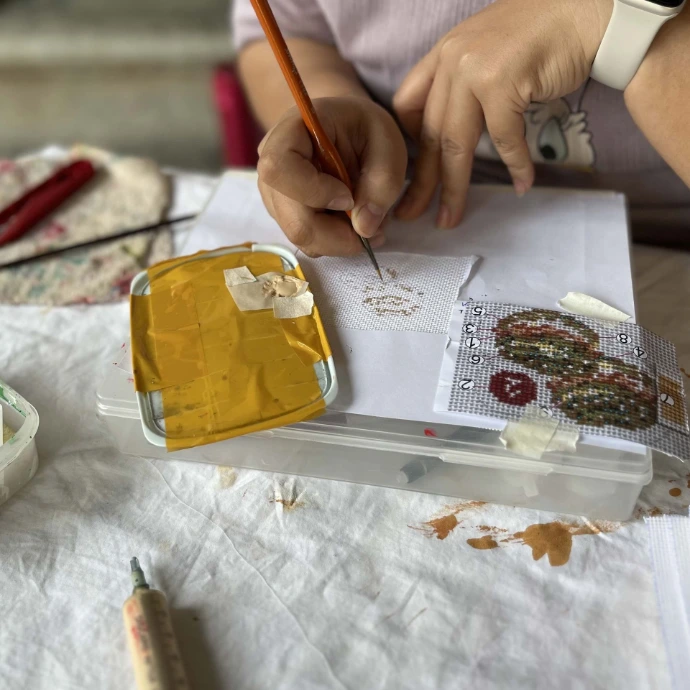
Hand-Painted Canvases
Accepted file formats:
- .OXS
- .CHART
- .STITCHLY
- JPGs or PNGs of physical canvases
Required Preview Image Format:
- PNG only
- No gridlines
- No shading
- Exported at 1 pixel per stitch
Software Import Instructions
StitchSketch
Step 1
Open: Share → Image File
Step 2
Set: Zoom: x1
Step 3
Save: Save to Camera Roll
Stitchly
Step 1
Open: Menu → File → Export
Step 2
Select: Image
Step 3
Open: Settings → Appearance (Pixels)
Step 4
Select: PNG → Pi
StitchFiddle
Step 1
Open: Download Chart
Step 2
Choose: PNG (1px PNG pattern)
MacStitch / WinStitch
Exporting Your Source File
Go to:
File → Other Save Formats → Save as OXS
Exporting Your PNG Preview Image
Go to:
File → Export → Export Thumbnail PNG
Important
Your PNG should:
- Display in pixel view only
- Have no gridlines
- Have no shading
- Export at 1 pixel per stitch
Other File Considerations
tips and tricks
Adding Reference Information & Sizing
Under Product Name, enter the title of your design.
Under SKU, enter the short reference number you would like to use for each design. It is helpful if this is unique and a combination of letters and numbers. For example, consider CD-100 or CD100, rather than 100. These do not have to be included on the physical canvas but are required for internal reference.
For the Mesh size, enter the gauge of canvas for the design.
Under Design Size, please enter the total size of the actual design, not including any color swatches, logos, or SKUs. Do not include any spaces or quotation marks in this field. For instance, 4x4 and not 4” x 4”.
Your Canvas Size is the total dimensions of the cut canvas. Typically, this is your design size plus a 2” border all the way around the design area. Please do not make the Canvas Size smaller than this without confirming with the NeedlePaint team prior to upload. Do not include any spaces or quotation marks in this field. For instance, 8x8 and not 8” x 8”.
From the drop-down menu, please choose Digital or Physical for your Master Canvas. All StitchPerfect Masters must be digital.
In the Notes section, please include the production method for your canvas: Hand-Painted or StitchPerfect. If you want to get a quote of the same design in both production methods, please upload two separate quote requests—one for StitchPerfect and one for Hand-Painting. Quote requests with different production methods will result in extended quoting timelines.
Logos & SKUS
We are happy to add logos and SKUs programmatically.
They do not need to be included in your original design files.
Logo Requirements
Please provide:
- A stitch-counted PNG
- No gridlines or shading
- Pixel dimensions matching stitch count
Recommended maximum size:
- 16 × 16 pixels
If you would like a logo or SKU printed on your canvas, please contact:
Color Swatches & Palettes
Color swatches and palettes cannot be added programmatically.
If you would like these printed on your canvas, please upload the full cut-canvas layout with swatches already placed in the design.
Frequently Asked Questions
The pixel dimensions of your PNG should match the stitch count of your design.
Example: A 72 stitch × 72 stitch design should export as a 72 × 72 pixel PNG.
Realistic previews often include:
- Shading
- Anti-aliasing
- Blended colors
These prevent accurate stitch mapping for production.
Please export using pixel view only.
Yes. For hand-painted production quotes, JPG or PNG photos of physical canvases are accepted.
No. We can add logos and SKUs programmatically.
Yes, but they must already be included in the uploaded design layout.
We cannot generate swatches automatically.
The production methods use different workflows and quoting structures. Submitting separate requests helps prevent delays.
Every design requires:
- A source file
- A PNG preview image
Your PNG should:
- Have no gridlines
- Have no shading
- Export at 1 pixel per stitch
If you receive an error message when paying an invoice in the portal, or if your payment does not go through, please contact caroline@needlepaint.com.